
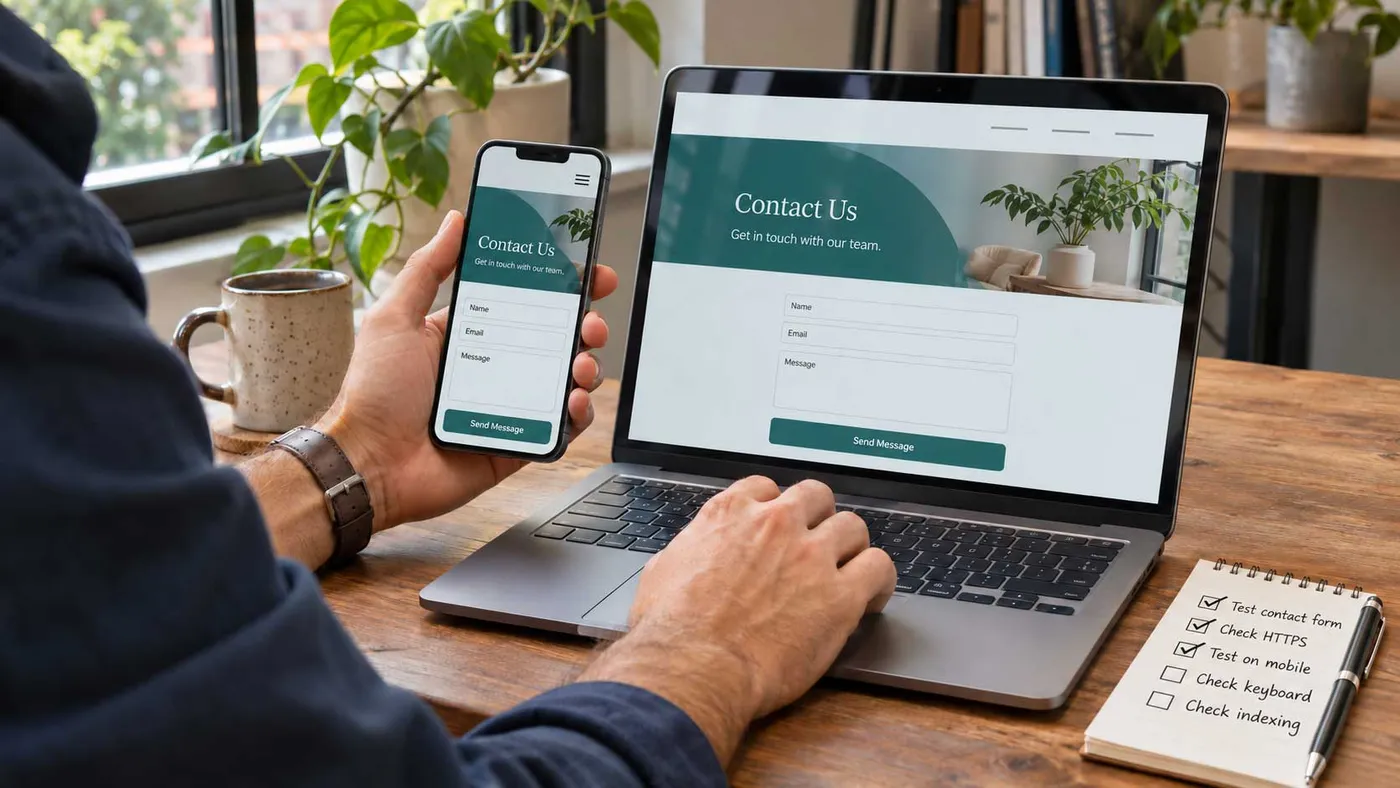
A customer fills out the contact form on a brand new website and gets a thank-you message. As far as they know, the business has their request. The message never reaches the owner's inbox.
I use AI in my own builds, and it has cut the time it takes me to get a working draft in front of a client. Before any site I build goes live, I run checks like these, and you can do every one of them yourself.
Run them before you announce the site or send any traffic to it. You can review copy and layout on a preview. Once the site is public on your own domain, retest the form and run the Search Console check.
If you have not started building yet, begin with my list of what to have ready before a website build.
1. Test the contact form
Fill out the form the way a customer would, from your phone and from a computer, on the final public domain. Then check the inbox the business actually watches, including the spam folder. A thank-you message on the screen tells you the page responded. Your inbox confirms the message arrived.
If nothing arrives, check the form service's submission history if it has one. A saved submission tells you the service received and recorded the entry. From there, check whether email notifications are turned on and which address they go to. Test again after every fix until the message lands.
2. Check every version of your address
Type your domain into a browser four ways: with and without www, starting with http and with https. Every version should end up at the same https address, with no browser warning along the way.
If one version shows a warning or lands somewhere different, send your host or site provider the exact address that failed and what you saw. That gives them what they need to track down the cause.
3. Use it on a phone like a customer would
Pick up your phone and complete a real task: open the menu, find one of your services, tap the phone number and confirm it opens the dialer with the right number, and send a test inquiry. Watch for text cut off at the edge of the screen or a floating chat button sitting on top of the form. If you have an iPhone, borrow an Android phone for a second pass, or the other way around.
4. Confirm the site describes your actual business
AI writes confident, polished copy, and it can fill a gap with something that sounds right. Read every page with that in mind. The kind of thing to catch is a service page promising 24/7 emergency calls when the business only answers during regular hours. Check every service, town, and credential the site mentions against how you actually run the business.
Then compare your business name, phone number, hours, and website link with your Google Business Profile, and correct whichever one is out of date. If you run a service-area business and keep your address hidden on Google, as Google's guidelines provide for, make those same comparisons and also confirm the areas you serve match.
5. Use it with a keyboard and check your images
Put the mouse aside. Press Tab until you reach the menu button, then press Enter to open the menu and follow a link. Then Tab into the contact form, fill in every field, and submit it. At every step, watch where the highlight lands so you can see which link or field you are on.
Then check your images. Every meaningful image needs alt text describing what it shows. Decorative images, like a background texture or a divider line, should have empty alt text so screen readers skip past them. WebAIM's 2026 analysis of the top million home pages found missing alt text on 53.1 percent of them.
6. Check Search Console and analytics
Once the site is live on your domain, open Google Search Console and run the URL Inspection tool's live test on your homepage and your most important service pages. It checks whether Google can reach the live page and flags some issues that can keep it out of search, such as a page still set to stay out of search results. Then submit your sitemap, which helps Google discover the rest of your pages.
For analytics, visit the site from your phone and look for that visit in the realtime report, called Realtime in Google Analytics 4. If you track inquiries, submit a test inquiry and look for that event by name in the same report.
7. Give each public page its own title and description
Start with the public pages you want people to find. In your site builder, open each page's SEO settings and look at two fields: the title tag, sometimes called the SEO title, and the meta description. Google draws on the page title for the title link in search results and can use the meta description for the snippet underneath, and it recommends a distinct pair for each page. A service page still carrying the homepage's title is the one to catch.
Replacing a Site You Already Have
If your new site replaces one that already brings in calls or search traffic, list the old addresses for your main service pages and any page that gets regular visits. If any of those addresses change on the new site, set up a permanent redirect for each one to its matching new page. Once the new site is live, open a few of those old links and confirm each one lands on the right new page.
Getting Your Site Reviewed
If you built your own site and want it reviewed before you send traffic to it, I will go through it and tell you what to fix first and why. Anything that can wait goes on a separate list. You keep the site you built.
Call 516-880-4201 or send me a note.